🌄 Image Generation with RecraftBot
To start creating unique images with RecraftBot, select the 🌄 Generation section in the main menu or enter the /generation command. This will open the Image Generation settings page.
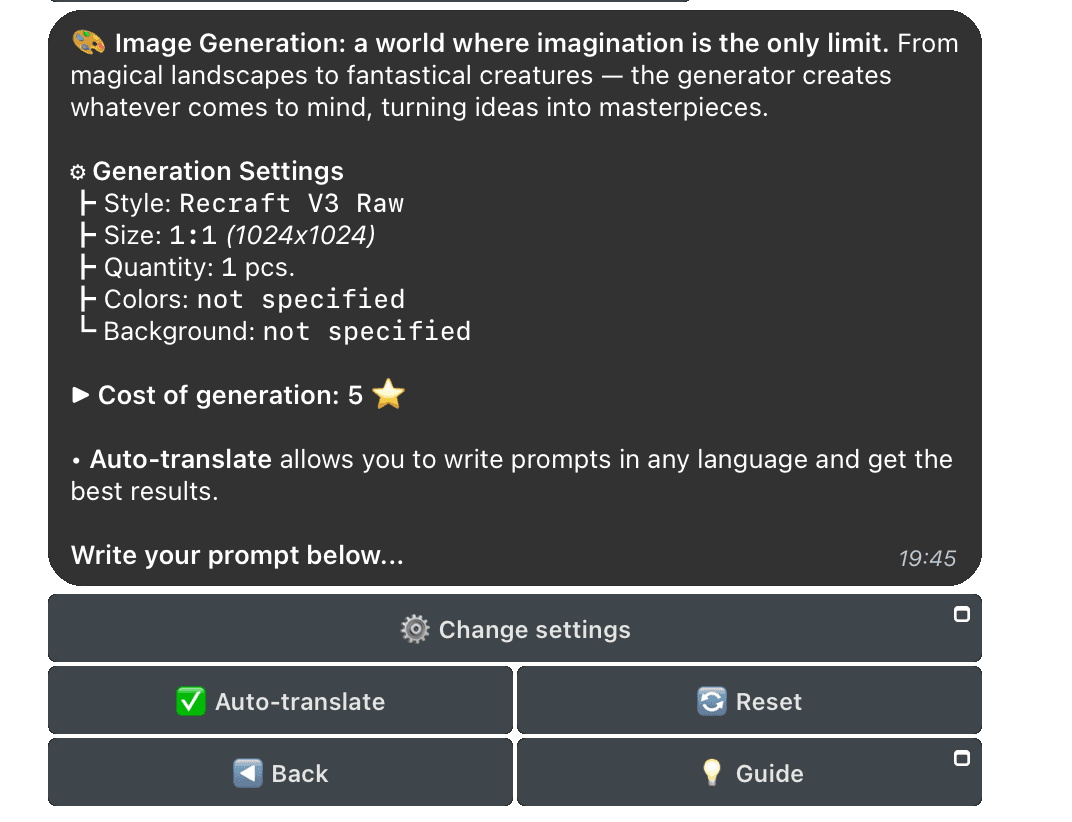
🛠 Generation Settings
You can customize the generation process to your requirements:
- Style — artistic style of the image
- Model - Recraft neural network model
- Size (resolution) — desired aspect ratio
- Quantity — number of generated options
- Colors — primary palette of the image
- Background color — background for the image
⚙️ Changing Settings
To change the generation parameters, click the ⚙️ Change Settings button. Telegram will first request consent to use mini-apps. Click Start, and you will have access to the settings page.
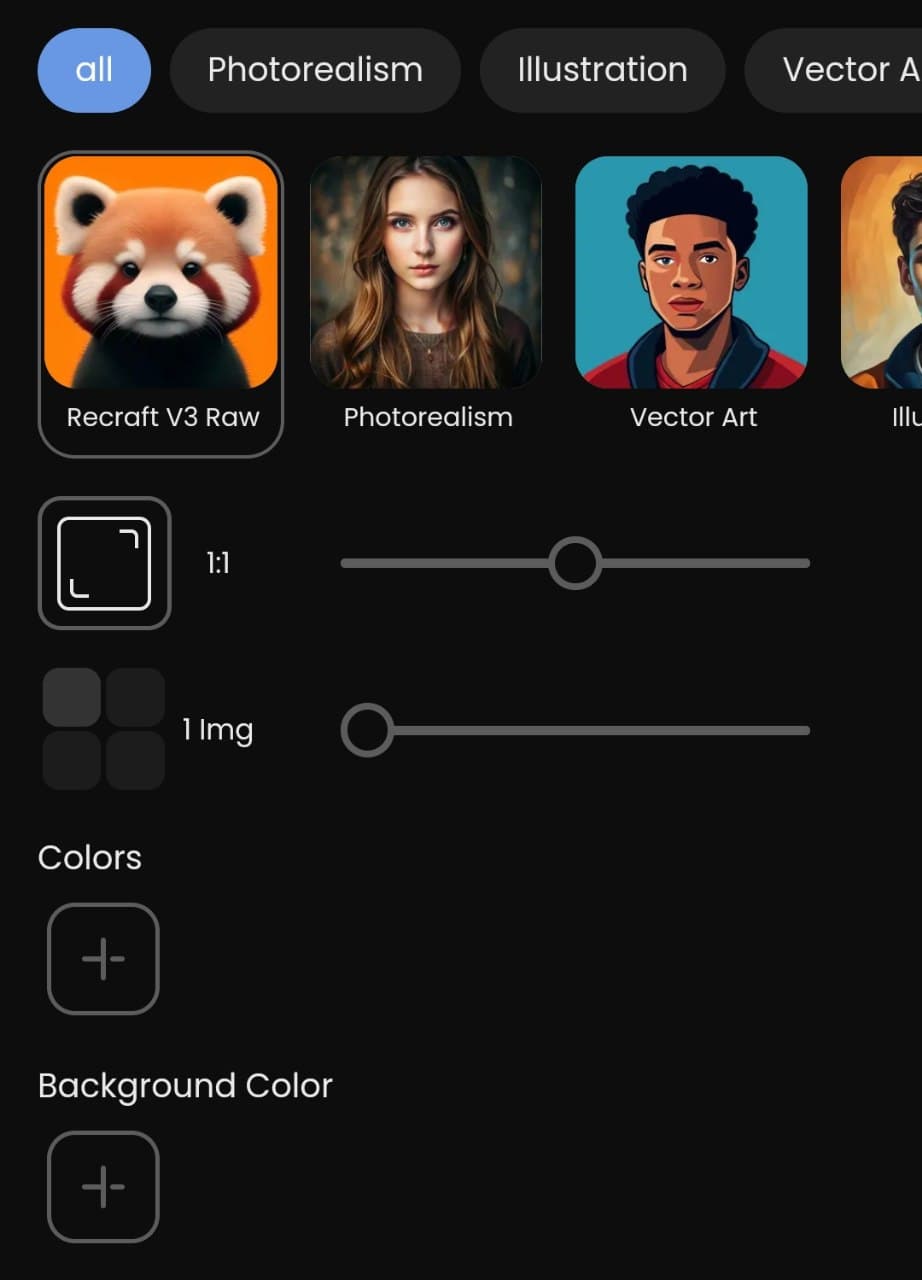
🔍 More About Settings
-
Style
Choose one of three styles: Photorealism, Illustration, or Vector Image. Note:- Vector style generation takes longer and costs more.
- Vector image results are sent in SVG format.
If no style is selected, the neural network determines it automatically.
-
Model The model choice depends on the generation style: for some styles, there is a choice between two models, while for others only one model is available.
One of two models:
- Recraft V3 — a modern model with high generation quality, accurate anatomy, texts on images, and editing capabilities, including vector graphics.
- Recraft 20B — a productive model for basic tasks, focusing on object positioning and perspectives, less detailed and functional than V3.
-
Size
Specify the desired resolution or aspect ratio of the image. -
Quantity
Choose how many variants you want: 1 or 2. This affects the cost. -
Colors
Set up to 10 colors for the palette that the neural network will try to use. This parameter is optional. -
Background Color
Specify the color that the neural network will attempt to use for the background. This parameter is optional.
Colors are used as guidelines. The exact result may differ.
To confirm, press the Confirm button, and the bot will return you to the chat to enter the request.
✍️ Tips for Writing Requests
To get the best result, follow these recommendations:
✅ Basic Recommendations:
-
Clarity
Describe details: objects, their placement, and relationships.
Example: “Sunny beach with palm trees, a sandcastle in the foreground.” -
Atmosphere
Specify the style and mood of the scene.
Example: “Foggy forest with mystical glow in a fairy-tale style.” -
Key Parameters
If resolution, color palette, or background are important, specify them.
Example: “Illustration in pastel tones with a transparent background.” -
Conciseness
Complex and long descriptions can confuse the model. -
Experiments
Try different phrasings to find the best approach.
🎨 Examples of Successful Prompts:
- “Futuristic city at sunset, cyberpunk style, neon lights.”
- “Kitten in a basket with flowers, cartoon style, pastel tones.”
- “Battle of knights in medieval style, emphasis on armor details.”
🚫 What to Avoid:
- Do not use vague descriptions like “beautiful image”.
- Do not overload the request with unnecessary details.
🌍 Auto-Translation of Requests
RecraftBot supports auto-translation of requests. You can write in any language — the service will translate them into English, as the model works better in this language.
Auto-translation helps achieve better results by translating your request into English. Note that in non-English languages, the model is worse at generating images with texts.
🔄 Reset Settings
Click 🔄 Reset to return all parameters to their initial values. This is convenient for a quick reset.
🚀 Sending a Request
When the settings are ready, send a text request to the bot chat, and it will start generating the image.